
Record any sound in the browser, get the text back
The extension lives in the toolbar of Chrome or Edge. It records the sound of the tab you are on, your microphone or a file from the disk, sends the recording to the same API as the web app and shows the text with timecodes in the popup. Version 1.0.0, Manifest V3, 31 574 bytes in the archive.
Page sound
The sound of the media element of the active tab. The recording runs inside the page, so it keeps going when the popup is closed. A page whose sound comes from another host cannot be read this way — the browser refuses it, and the extension says so and offers the file from the disk instead.
Microphone
The microphone of the computer, through the MediaRecorder of the browser. The popup shows the time of the recording and the button becomes "Stop" while it runs.
File from the disk
Any audio or video file: mp3, wav, m4a, mp4, webm, ogg, flac, aac, amr. A file bigger than the limit of the service never leaves the computer — the extension refuses it before it sends anything.
What happens to the recording
-
The extension asks for a credential
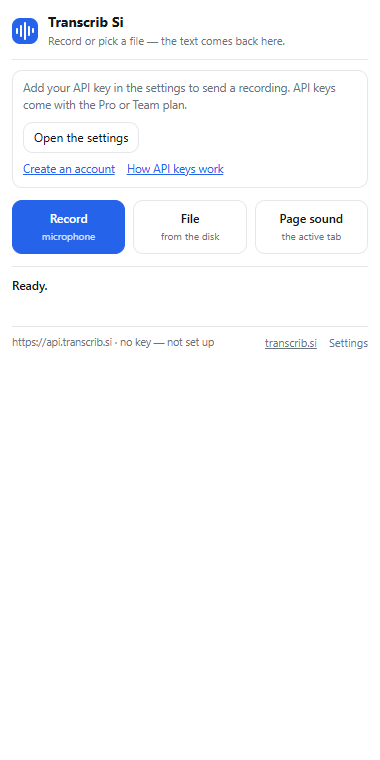
The key or the access token goes into the settings of the extension and stays in the profile of the browser. Without it the popup says "not set up" and nothing is sent.
-
The file goes to the API
A file up to 8 MB goes in one multipart request to
POST /v1/transcripts. A bigger one is cut into parts of 8 MB:POST /v1/uploads/init, thenPUT /v1/uploads/{upload_id}/chunk?index=Nfor every part, thenPOST /v1/uploads/{upload_id}/complete. -
The text comes back to the popup
The popup shows the text, the timed lines with the speaker labels, and three buttons: copy the text, download a .txt file, or open the record in the web app. The credential travels in one header of that request and nowhere else:
X-API-Keyfor the key, orAuthorization: Bearerfor the access token.
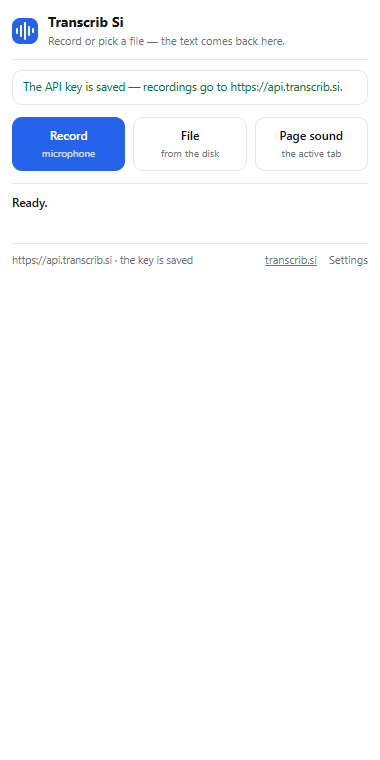
The interface, as it is
Three screenshots of the extension, taken from a working copy in Chrome 155.0.8059.85 on Windows — the first one is the state of a new installation, the second one is the state after a key is saved, the third one is the page of the settings.
https://api.transcrib.si.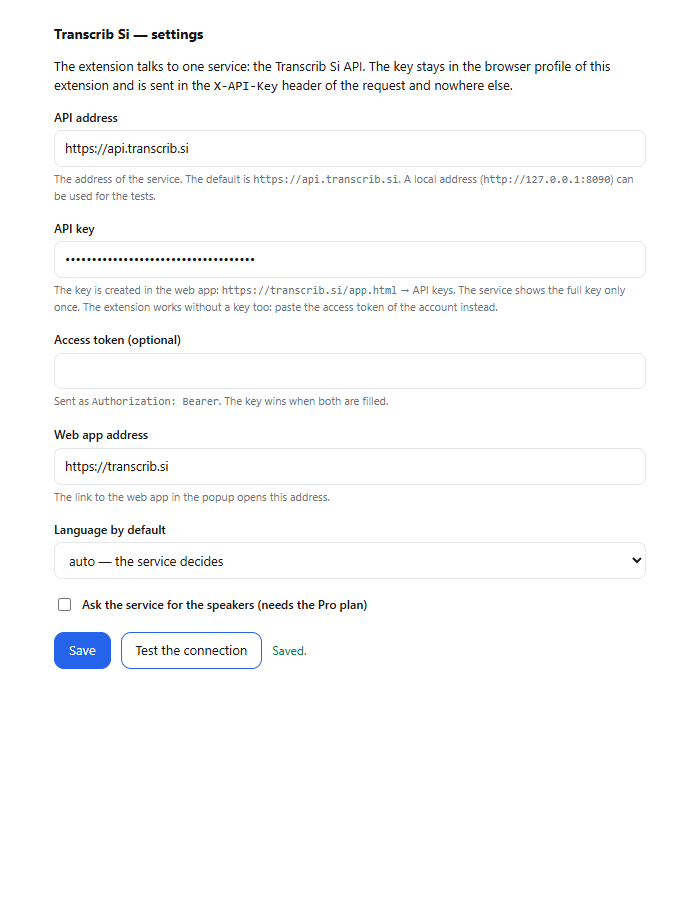
Installation
Chrome and Edge
Chromium browsers do not install an extension straight from a zip file, so the archive is unpacked first and the folder is loaded as an unpacked extension:
-
Download and unpack the archive
Download transcrib-si-extension-1.0.0.zip — 31 574 bytes, 19 files, the manifest in the root of the folder.
-
Open the extensions page
chrome://extensionsin Chrome,edge://extensionsin Edge. -
Load the unpacked extension
Turn on the developer mode, press "Load unpacked" and choose the folder with
manifest.jsonin it. The icon of the extension appears in the toolbar. -
Add the key
Open the settings of the extension and paste the API key or the access token. The popup turns from "not set up" into "the key is saved".
Firefox
This build is made for Chromium browsers: it uses the background service worker of Manifest V3, the chrome.scripting API and the Web Audio API inside the page. Firefox reads Manifest V3, but in its own way, and this build was not tested there — so install it in Chrome or Edge, which is where it is checked with every release.
The status of the publication
There is no listing of this extension in the Chrome Web Store, and there is no page that claims there is one. The archive on this page is the build of version 1.0.0 that we assemble and check ourselves: it is the same build that the check of the load takes into a real Chrome, where the manifest is accepted, the service worker starts, and the popup and the settings page open without a single error.
The package for the store is prepared, but the submission belongs to the owner of the service, not to this page. Until it is done, the honest way to install the extension is the archive above.
What leaves your computer
- The audio of the recording goes to
https://api.transcrib.si— the same API, with the same engine and the same privacy rules as the web app. - The key or the access token stays in the profile of the browser and goes only in the header of the request to that address.
- Recording the sound of a tab works through the permission
activeTab: the browser gives it to the extension when you open it by its icon, with no separate question. The extension asks for access to a host in one case only — when you save your own address of the API in the settings; then Chrome shows a question about that address. - Nothing is sent to any other service. There is no analytics and no third-party script in the extension.
Put a file on the page and read the first lines.
The widget below is the same one as on the home page: file → transcript with timecodes and speakers → export. The transcript is saved to your account.
Drop an audio or video file
or — mp3, wav, m4a, mp4, up to 64 MB and two hours
Transcription runs under your account: sign in or create a free account.
No account yet? The free plan needs no card. Create a free account or sign in.
Questions this page answers.
Is the extension in the Chrome Web Store?
No. There is no listing and this page does not pretend there is one. The archive on this page is the build of version 1.0.0 that we assemble and check ourselves; install it from the archive or from the unpacked folder. The submission to the store is prepared, and the owner of the service makes it.
Which browsers does it work in?
Chrome 116 and newer, and Edge — the Chromium browsers. The build uses the background service worker of Manifest V3, the scripting API and the Web Audio API inside the page. Firefox reads Manifest V3 in its own way, and this build was not tested there.
Do I need an API key?
The extension needs a credential before it can send a recording. It is either an API key — created in the app on the Pro or Team plan, and shown exactly once — or the access token of your account, sent as Authorization: Bearer. Where to get both is on the page of the API.
Which languages does it understand?
Russian and English, or automatic detection. The service accepts exactly three values of the language: ru, en and auto, and the extension offers the same three in its settings.
What are the limits?
A file is up to 64 MB and two hours — that is the limit of the service. The extension refuses a bigger file before it sends anything. Files over 8 MB are uploaded in parts of 8 MB. The number of files or minutes per month depends on the plan — the pricing page has the full table.
Does the recording stay on my computer?
No. The audio goes to https://api.transcrib.si, to the same engine that the web app uses, and it is kept there under the same retention rules. The key stays in the profile of the browser and travels only in the header of the request.
Related pages.
Every plan, every limit, in one table.
The endpoints, the keys and the error codes the extension uses.
Where the keys are created and the records are kept.
The guide for the case the extension is made for.
Where a file is processed and how long it is kept.
Support, security and the questions about the extension.
Mark Vesyoly, Founder.
Every number on this page comes from the code of the extension, the service contract or the pricing page. The author of the page and the publisher of the site are the same person. Questions and corrections: support@transcrib.si.